
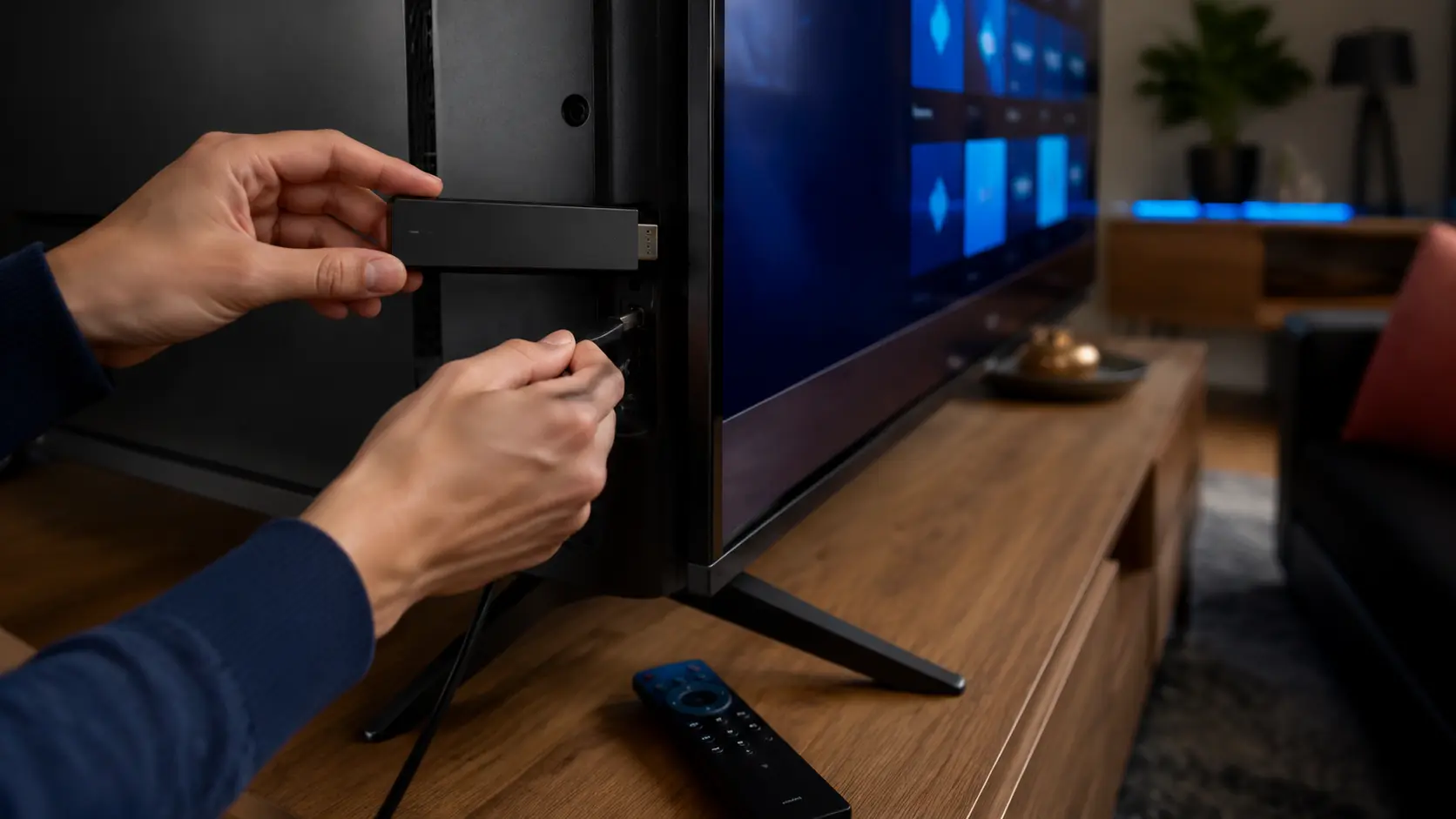
Fire TV Stick & Fire TV
- Update Fire OS
- Install a compatible player
- Enter supplied login method
- Test remote and playback
Choose a compatible player, enter the supplied account method privately, allow the catalog and guide to load, then test live TV and on-demand playback under normal home conditions.
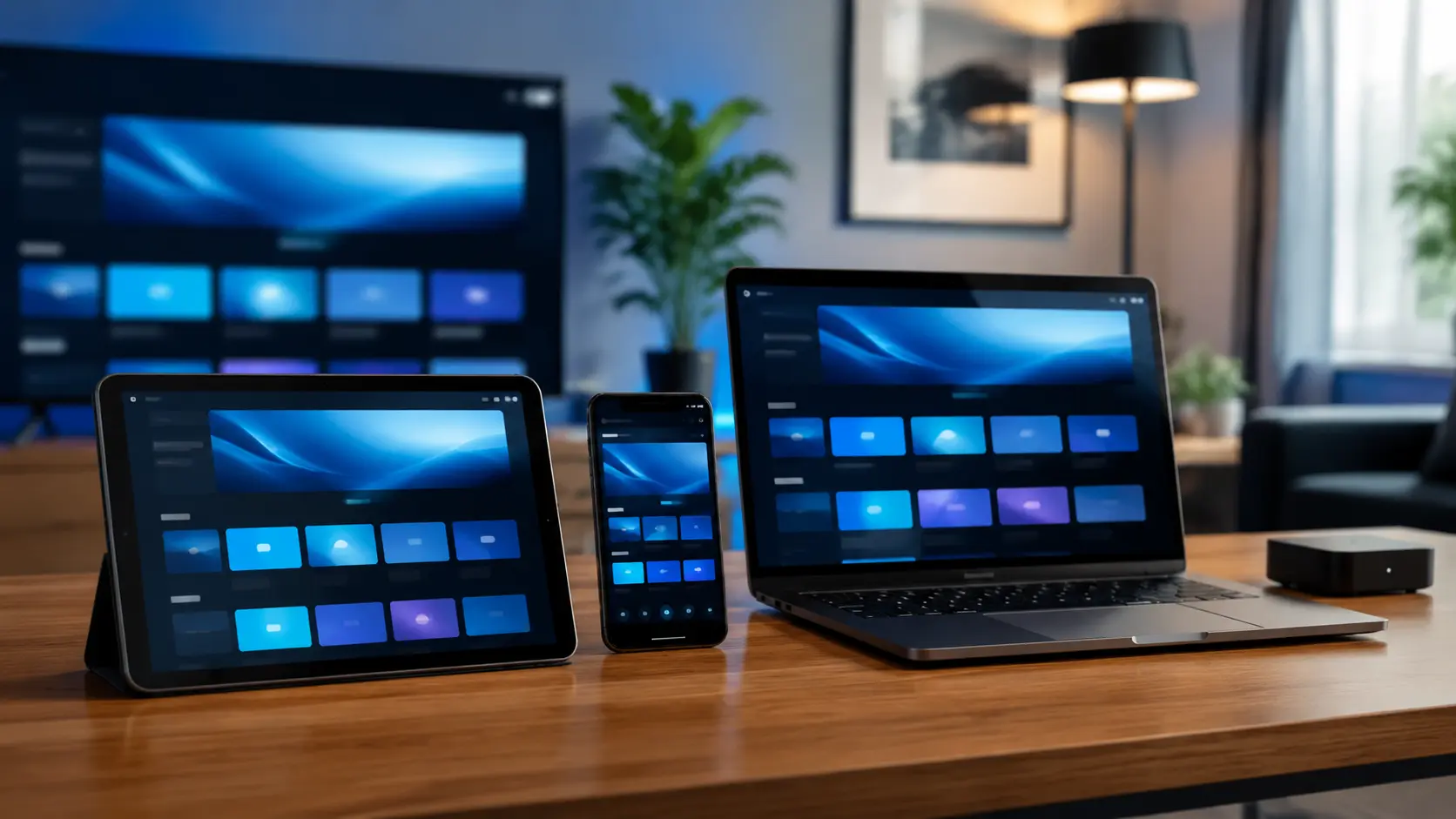
App availability and steps differ between Fire TV, Tizen, webOS, Android/Google TV, Apple and desktop platforms.
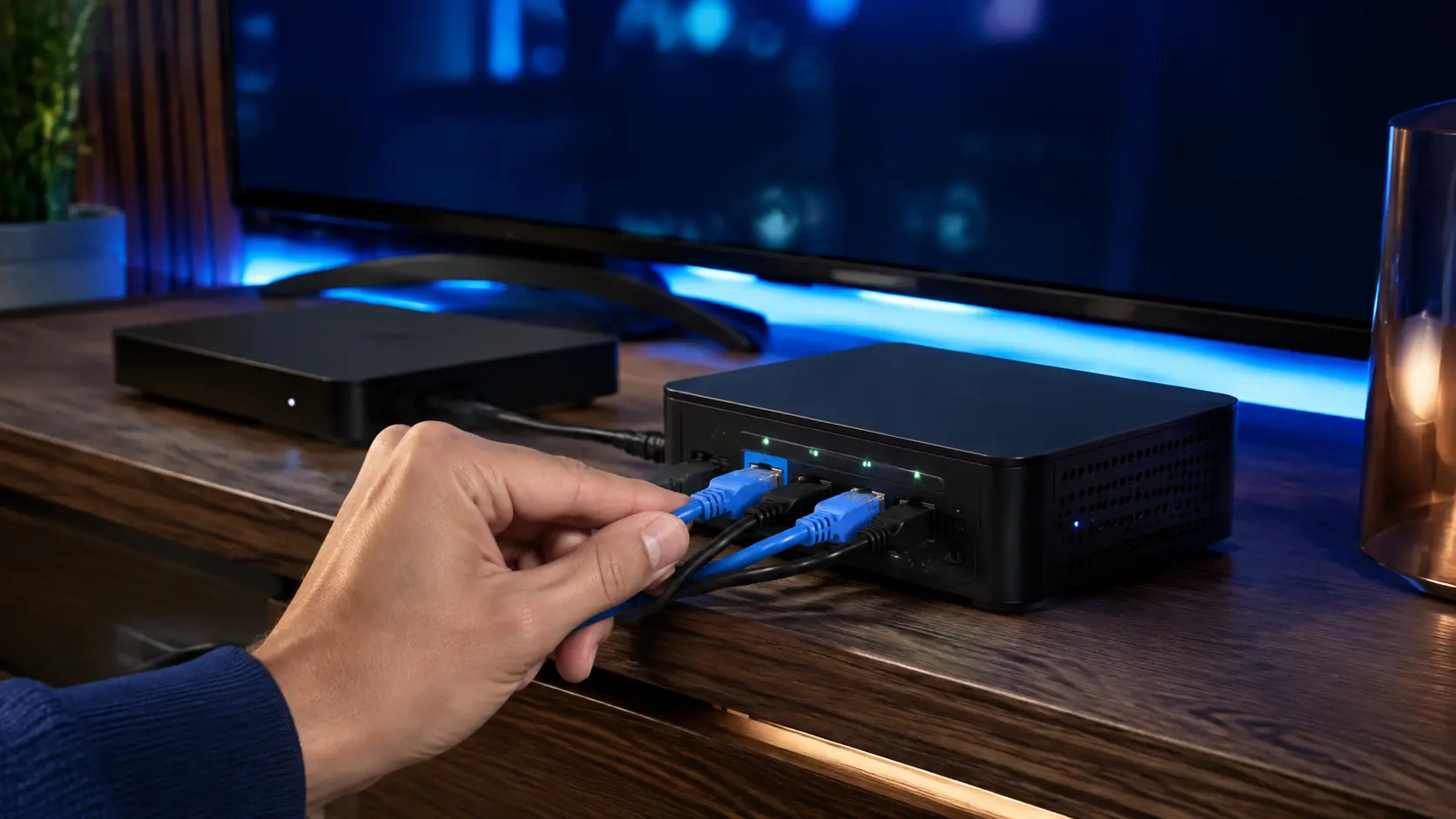
Do not expose credentials in public screenshots or use an app that does not support the supplied login format.
Install current system and store updates.
Use a trusted compatible application.
Match the method supplied with the account.
Copy the server and account details accurately.
Wait for channels, VOD and EPG to import.
Try playback, guide, search and favourites.
Testing scope first prevents unnecessary reinstalls.
| Symptom | First checks | Next action |
|---|---|---|
| Login rejected | Method, URL, typing and expiry | Ask support to verify account status |
| One stream fails | Try other channels and VOD | Report exact feed and time |
| All streams buffer | Ethernet/Wi-Fi, household traffic and device | Lower quality and compare another device |
| Guide missing | EPG refresh and time zone | Check whether data is supplied |
| App crashes | Storage, update and restart | Try another supported player |
Use Ethernet where practical or strong modern Wi-Fi with enough capacity for every active household task.
A wired connection can reduce local Wi-Fi interference on televisions and boxes that support Ethernet.
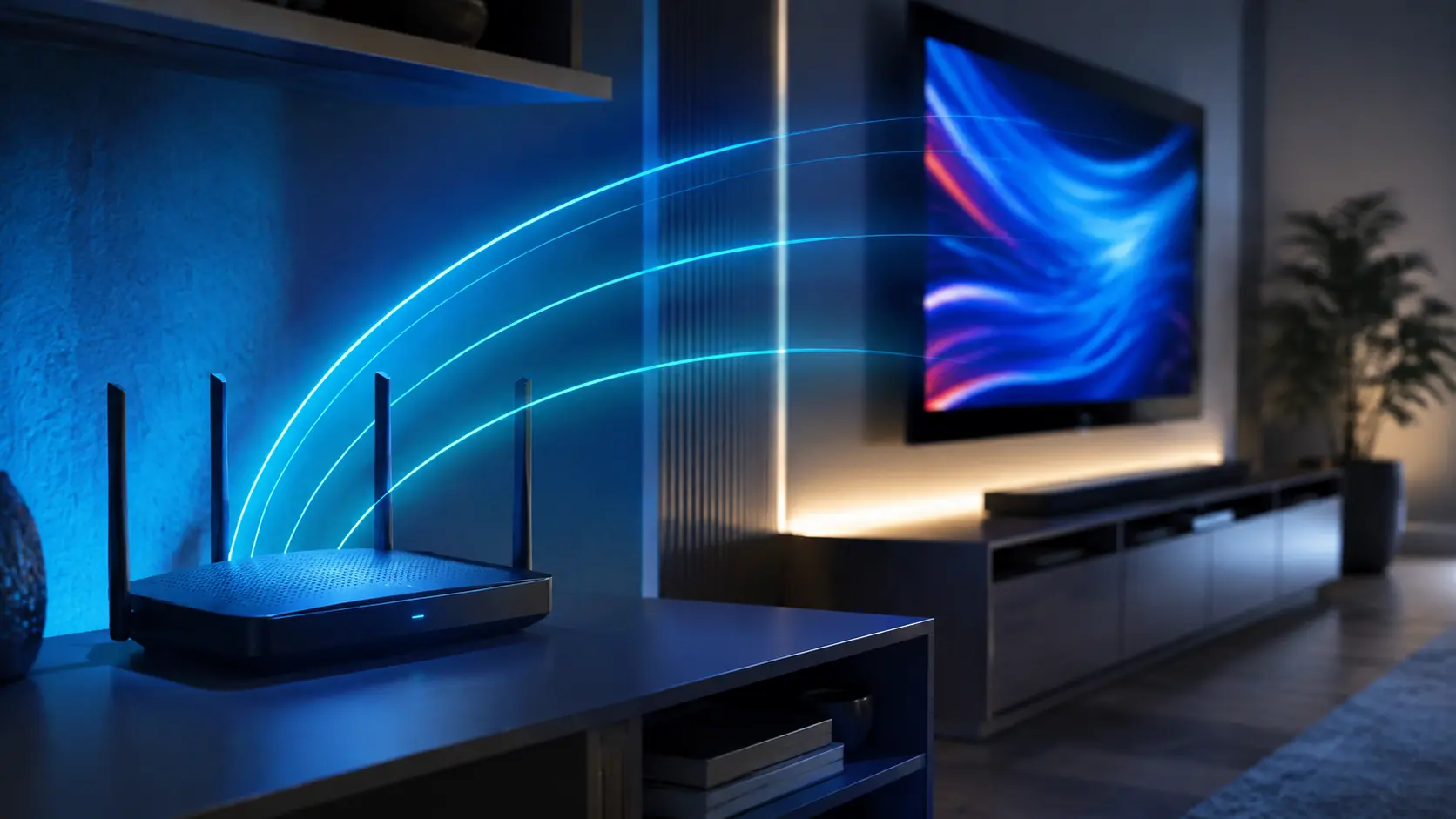
Use strong 5 GHz or 6 GHz Wi-Fi, capable hardware and a quality level that matches your connection.
Keep credentials private, use the supplied server address and avoid entering them into unknown apps or sites.
Include device and player details when asking for support.