Prepare the reading task
Pick three useful interface examples: a short programme name, a long episode description and a playback control label. Use the normal seating position and lighting. This is more informative than checking only a large home-screen title. Keep a note of the current text and contrast preferences so you can distinguish the effects of each adjustment.
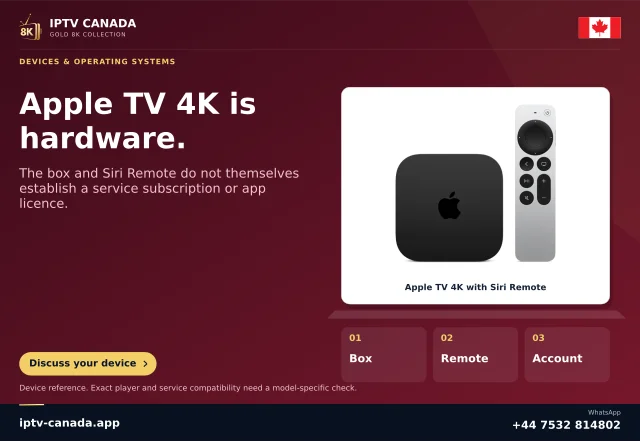
On supported Apple TV software, open Settings, Accessibility, Hover Text and enable the feature. The box is an interface aid. It does not rewrite a programme's video, translate speech or create a subtitle track.
Place and style the enlargement
Apple documents top, bottom and inline display choices, alongside appearance and scrolling controls. Select a position that makes the chosen item readable while keeping enough context visible to understand which control is focused. A very large box can cover neighbouring controls, so assess the whole task rather than the size alone.
Adjust text size, foreground and background to a combination you can read comfortably. If a long label scrolls, compare the available scrolling speed against your reading pace. Keep the remote focus on one item until you have read it; rapid movement between tiles can make any enlargement difficult to follow.
Try real player navigation
Return to the app and find the selected examples. Check whether the enlarged wording corresponds to the control you intend to activate. Then open and close the programme details and playback controls. A feature that helps the home screen but obscures the app's language menu may need a different placement.
Some applications expose clearer text labels than others. A custom-drawn graphic without a suitable text label may not behave like a normal system item. Document that specific screen rather than assuming every app is equally accessible or that a subscription change will fix interface labelling.
Choose a usable combination
If text enlargement is enough, keep the wider screen context available. If icons or the entire interface remain too small, compare the separate Zoom feature. VoiceOver provides spoken interface information and is another distinct option. They can serve different needs, but introducing one at a time makes the result easier to judge.
For a useful support report, name the Apple TV and tvOS versions, application, screen, label and chosen Hover Text placement. State whether the issue is missing text, clipping, scrolling speed or overlap. No personal account details are necessary to describe those behaviours. This guide follows documented system controls and does not claim a hands-on accessibility audit of any player.
Sources and scope
Scope notes distinguish published documentation, supplied information and editorial methods. They do not report a hands-on service test.
- Use Hover Text on Apple TV 4K — Official support search excerpt: magnified text placement, appearance and scrolling controls.
- Use Zoom on Apple TV 4K — Official support search excerpt: Zoom enablement, focus and panning gestures; no hands-on assessment.
- Use VoiceOver on Apple TV 4K — Official support search excerpt: navigation and exploration behaviours; app labelling quality not independently tested.