Confirm the remote first
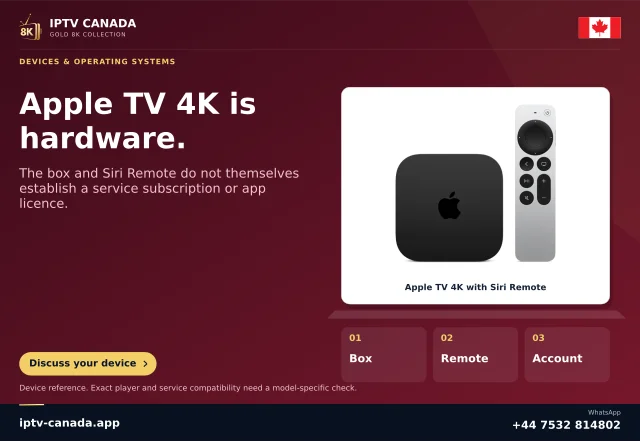
This feature is documented for the silver remote. Identify the remote before searching for a missing setting or following a gesture video. A first-generation touch-surface model and later clickpad models do not have identical controls. The same television may also receive commands from a universal remote, which is a different input path.
Open Settings, Accessibility and enable Tap to Navigate where available. Keep the existing tracking setting noted. The feature is about tapping the directional controls; it does not turn every action into a touch gesture.
Practise the selection boundary
Start on a simple grid. Tap a direction and observe the highlighted item. Then press the clickpad centre to open it. Apple specifically distinguishes directional tapping from centre selection. If the highlight moves but nothing opens, check the activation action before assuming that the app has frozen.
Repeat a small route you can recognise easily: enter settings, move to a nearby item and go back. A helper can describe the current focus, but should allow the user to perform the actions. The purpose is a reliable independent sequence.
Try playback without rushing
Open a familiar programme and reveal the controls. Move to a labelled button, activate it, then return. Watch whether the overlay remains long enough to finish the movement. A player may have custom layouts or focus rules, so home-screen success is only the first stage.
If accidental swipes continue, compare the separate Clickpad preference and touch tracking speed. Introduce each change independently. Tap to Navigate, Click Only and slower tracking address related but different input behaviours; a single screenshot does not explain which one a person needs.
Choose a household default
Keep the arrangement that reduces missed directions and mistaken activations on the screens actually used. Record the original and preferred settings so they can be restored after an update or another person's changes. Practise the ordinary back action as part of the route, because recovery matters as much as forward movement.
If a problem appears in only one player menu, collect the app name and version, the selected item and the action that fails. If directions fail in system screens too, include the remote model and accessibility settings. Avoid sending account credentials; the navigation behaviour can be described without them.
This guide uses Apple's documented remote scope. It does not claim compatibility with every third-party remote, certify an IPTV player or establish whether a particular physical limitation will be addressed.
Sources and scope
Scope notes distinguish published documentation, supplied information and editorial methods. They do not report a hands-on service test.
- Turn on Tap to Navigate on Apple TV 4K — Official support search excerpt: silver remote directional tapping; centre selection still requires a press.
- Adjust remote settings on Apple TV 4K — Official support search excerpt: clickpad tracking and TV button settings; remote generation matters.