Enable it with a recovery plan
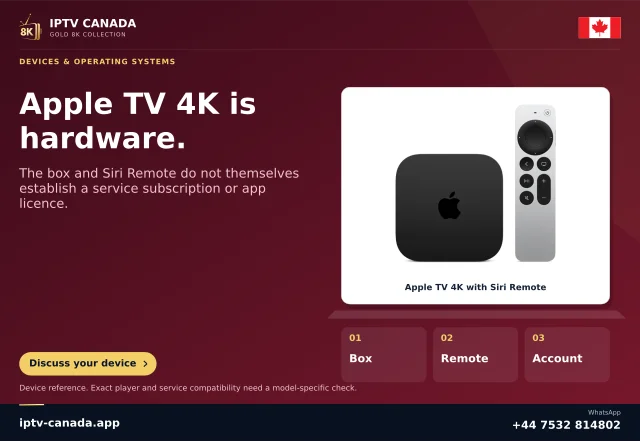
Open Settings, Accessibility, Zoom on a supported Apple TV. Before entering an unfamiliar player, practise zooming in and out on a simple system screen. Apple's documented remote controls include a triple press of the clickpad centre or touch surface for the zoom state. Remote generations differ, so identify which control your model has.
Choose a modest maximum magnification initially. The purpose is to complete a task comfortably, not fill the screen with the largest possible letter. A very high setting can make nearby controls disappear from view and increase the amount of navigation required.
Follow Focus and Panning solve different problems
In Follow Focus, the enlarged view centres on the item you navigate to. This suits moving through labelled menu items. Panning lets you move the enlarged view around the image. It can help examine a region that is not itself a focused control. Apple documents a two-finger tap on the clickpad or touch surface to switch these modes.
Try each on a known screen. Move one item at a time, pause to identify where the view went, then return. Do not assume moving the magnified view activates a control. Navigation, magnification and selection are separate actions.
Test the player's critical controls
Open a programme's details, the playback overlay and the audio or subtitle list. Check whether focus stays understandable when a menu opens, when the overlay disappears and when you go back. An app that repositions controls during playback can feel different from the home screen.
Test long lists as well as the first item. If magnification repeatedly centres on an unhelpful area, describe the exact app screen. Changing the internet connection cannot correct an interface focus rule. A developer needs to know which element or transition causes the loss of position.
Set limits that work in the room
Adjust the maximum and actual magnification while seated at the normal viewing distance. Compare enough enlargement to read comfortably against enough context to see surrounding choices. Practise the return to the normal view once more after changing the level.
If only selected words are difficult, Hover Text may leave more context available. VoiceOver is a separate spoken interface tool. Pick according to the user's task; there is no requirement to use every accessibility option together.
Record the remote model, tvOS version, app and screen when asking for help. Distinguish a gesture that fails everywhere from an app-specific loss of focus. This is a documented-control walkthrough, not a medical recommendation or a first-hand accessibility certification.
Sources and scope
Scope notes distinguish published documentation, supplied information and editorial methods. They do not report a hands-on service test.
- Use Zoom on Apple TV 4K — Official support search excerpt: Zoom enablement, focus and panning gestures; no hands-on assessment.
- Use Hover Text on Apple TV 4K — Official support search excerpt: magnified text placement, appearance and scrolling controls.
- Use VoiceOver on Apple TV 4K — Official support search excerpt: navigation and exploration behaviours; app labelling quality not independently tested.