Observe the extent of enlargement
If the menu, labels and controls are magnified along with the picture, accessibility Zoom may be involved. If a playback picture alone changes framing, inspect the video's supported zoom or fit controls.
Apple documents both types of behaviour with different gestures and scope. Similar everyday wording does not make them one setting.
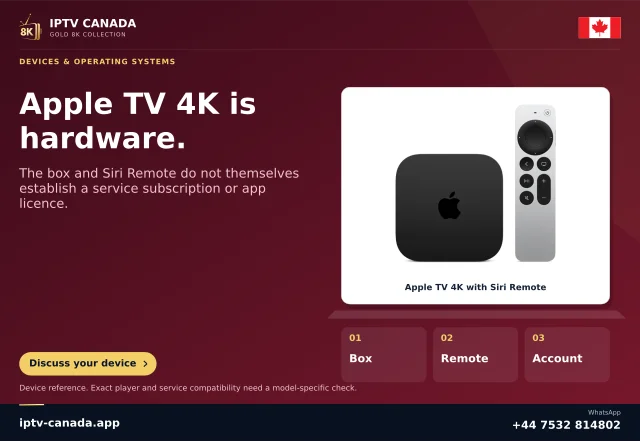
Identify the remote and control
Record the remote generation and the exact action used. The accessibility guide describes its own magnification gestures, while the video settings guide describes playback zoom where supported.
Do not repeat random taps while trying to undo a change. Use the corresponding documented recovery action for the observed state.
Preserve the necessary information
After returning to the intended view, check subtitles, scoreboards and edge detail. A zoom that fills the screen can crop programme content, while whole-interface magnification changes navigation context.
A person may intentionally need accessibility enlargement. Do not disable it merely because another viewer expected an uncropped film; establish the intended task and a usable way to switch.
Keep source framing separate
If black bars remain inside the video, they may belong to the supplied picture. Neither a player label nor a system magnifier proves how the source was framed. Compare a known permitted item using unchanged settings.
A programme-specific crop and a global interface preference need different support descriptions.
Report the scope precisely
Say whether the entire interface or only the video is affected, which gesture preceded it and what setting restores the expected view.
No Apple TV or accessibility setup was tested here. This article explains documented control distinctions and does not prescribe one zoom level, certify every app or promise that filling the screen preserves the original programme.
Practise a task after restoring the view
After choosing the intended zoom state, navigate to an audio or subtitle option and return. That verifies the user can still understand focus and controls, not simply that a picture looks less cropped. If accessibility magnification is intentionally used, keep its comfortable level and recovery gesture documented. If only one programme remains cropped while the rest of the interface fits, retain that source-specific scope. A global display change should not silently compensate for one feed while cutting off otherwise correct captions or graphics.
Sources and scope
Scope notes distinguish published documentation, supplied information and editorial methods. They do not report a hands-on service test.
- Apple TV accessibility Zoom — Official current excerpt: accessibility magnification controls and gestures.
- Apple TV video settings — Official versioned excerpt: playback zoom and QMS options; feature/hardware qualifications retained.